RIVERSIDE ARTS DISTRICTMAKERS
MARKET
MARKET
Food · Music · Independent design
EVENT DATEOCTOBER 18,2025
Replace a visible date, match its original style, and download a clean full-size image—without hunting for the source file, rebuilding the design, or learning Photoshop.
Food · Music · Independent design
Food · Music · Independent design
Edit on this page
Choose a detected date, enter the replacement, and refine its appearance before exporting. Your original upload stays unchanged.
Focused editing, less rework
Update the date people can see while keeping the rest of your image and workflow intact.
PhoText scans your uploaded JPG, PNG, or WebP and brings likely dates and times to the front. Instead of searching through every word in a busy poster or schedule, you can start with date candidates such as a year, full written date, numeric date, time, or date range. If the date is not recognized automatically, you can still view all detected text and select it manually.
A missing source file should not force you to recreate a finished graphic from scratch. Select the visible date, type the replacement, and update only that part of the picture. The surrounding headline, photography, colors, and layout remain in place, helping you refresh an event poster or schedule in minutes instead of reopening a complex design project.
Use practical controls for font, size, weight, color, alignment, and position so the replacement belongs in the original composition. You can move the date on the canvas, compare the original and edited versions, and undo changes while you refine the result. Exact font matching depends on whether the source font is available, but the controls make a close visual match much easier.
Replace a single year or switch between formats such as April 23, 2026, 23 April 2026, 04/23/2026, or 2026-04-23. PhoText exports the edited result as a full-size PNG, so small date text stays clearer than it would after another round of JPEG compression. There is no need to install Photoshop or learn a full desktop editing suite for one focused change.
One important distinction
When people ask how to change the date of a photo, they may mean either text printed inside the image or the hidden Date Taken value stored as EXIF metadata. PhoText edits only the visible text. To change the date shown in a phone gallery or file properties, use a dedicated metadata editor instead.
Who uses it and why
Use PhoText when the image is yours or you have permission to edit it, the surrounding design is still correct, and only a visible date needs an update.
Event organizers and designers
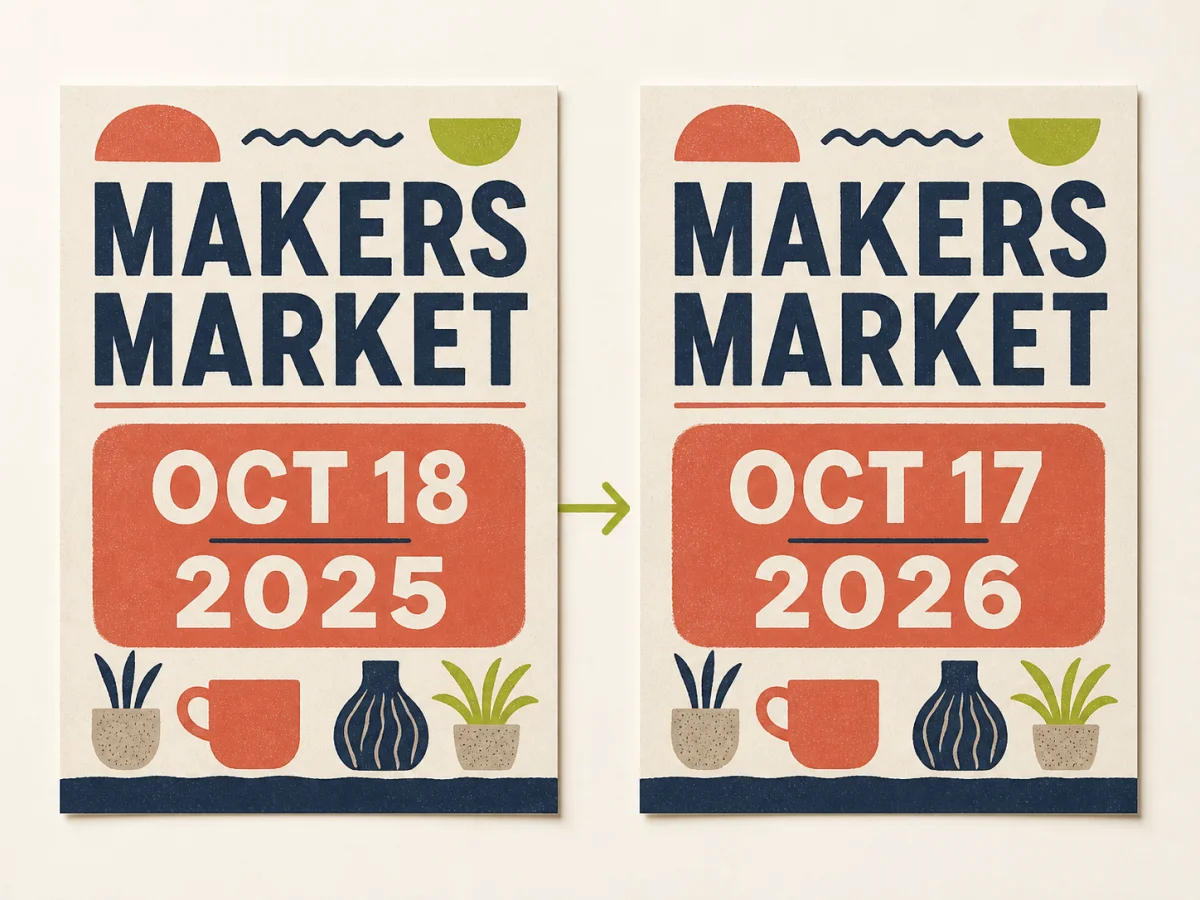
Recurring markets, workshops, performances, and community events often reuse the same visual identity. When the editable design file is unavailable, an old date can make an otherwise finished poster unusable. Upload the poster, select its visible event date, enter the new day or year, and adjust the replacement to fit the existing date block. You keep the illustration, branding, and layout you already approved while avoiding the cost and delay of rebuilding the poster.
Visible date changed: OCT 18, 2025 → OCT 17, 2026.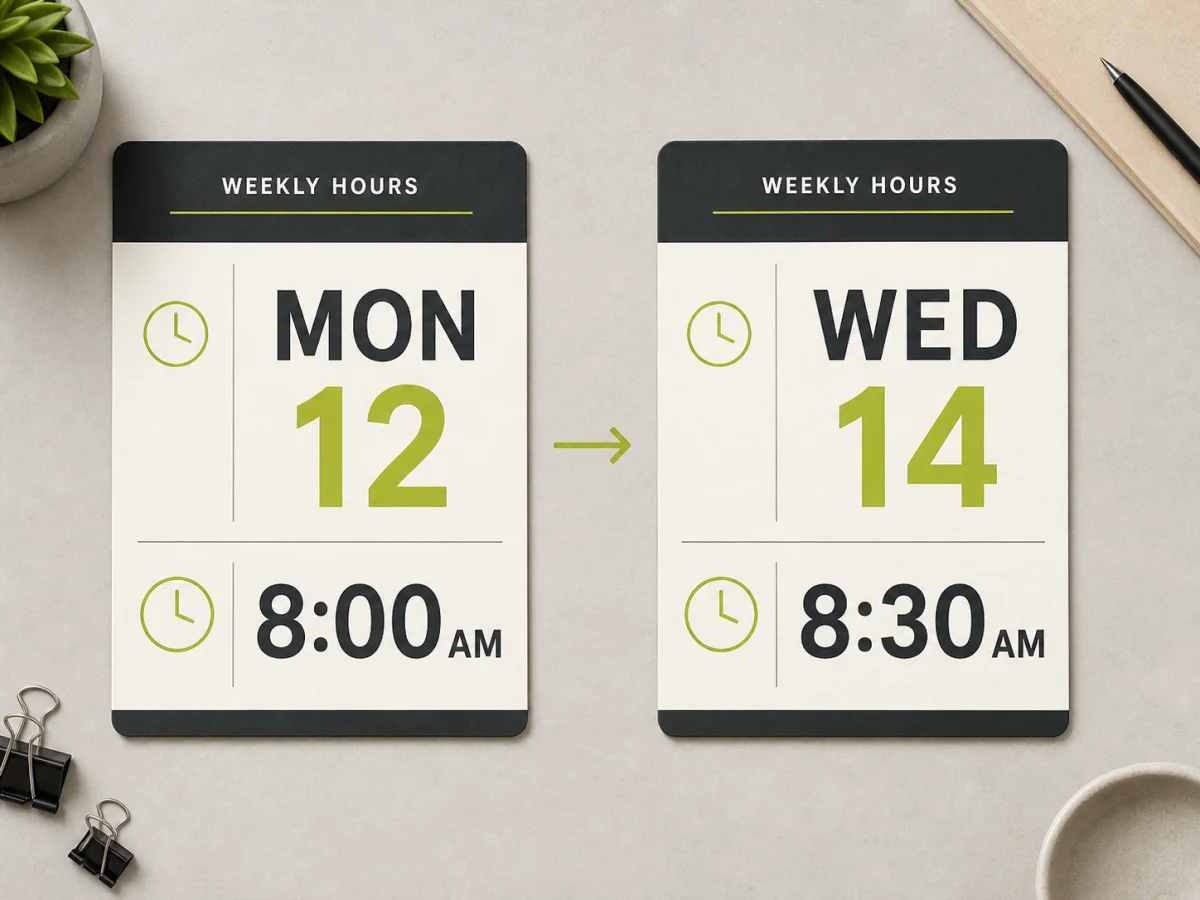
Small businesses and operations teams
A café, studio, school, clinic, or community group may share opening hours and weekly schedules as images across several channels. If one session moves, you should not have to rebuild every label and divider. A photo date changer lets an authorized team member revise the visible day, date, or time while preserving the rest of the schedule. The updated PNG can then replace the outdated graphic on a website, social post, noticeboard, or internal guide.
Schedule changed: MON 12 at 8:00 AM → WED 14 at 8:30 AM.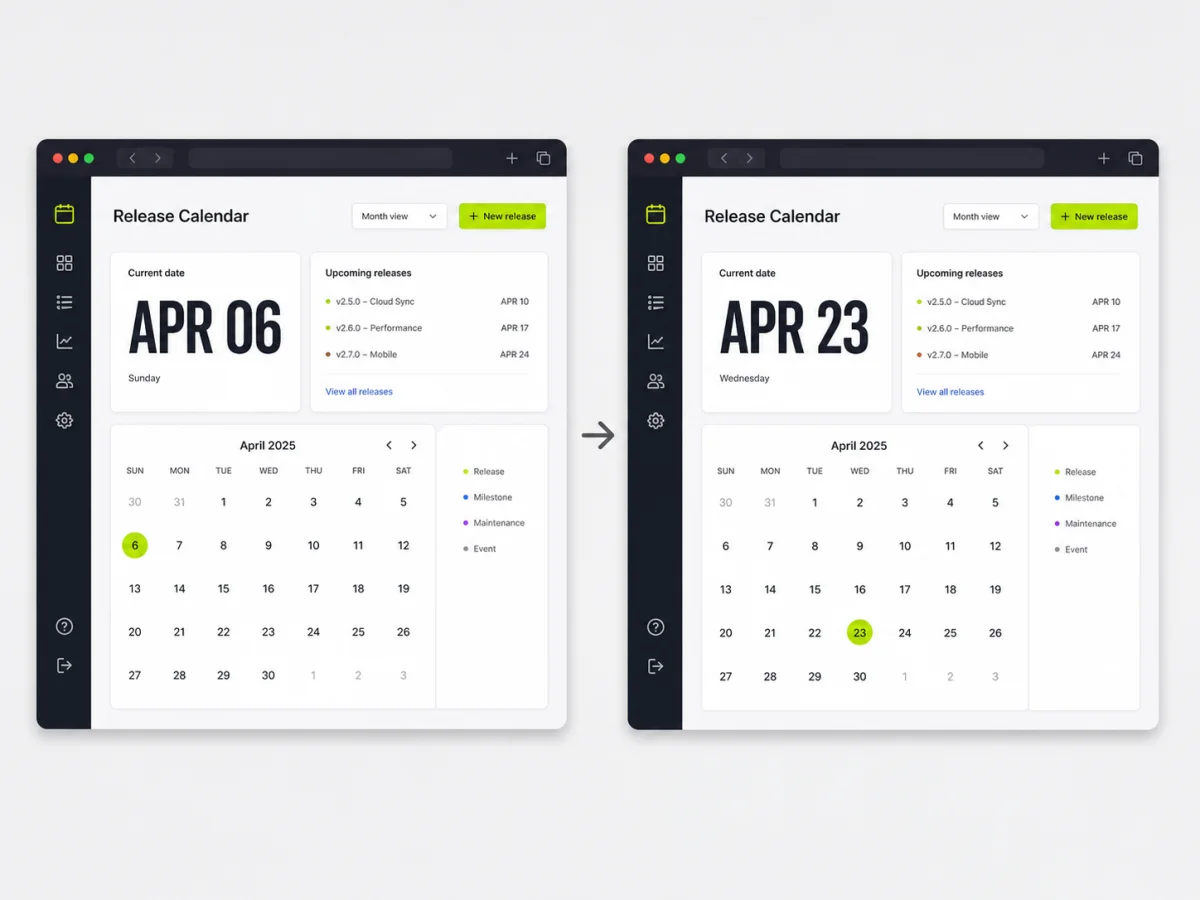
Product and content teams
Documentation, onboarding guides, app-store images, and product demos can become stale when a visible date no longer matches the story being shown. For screenshots your team owns or is authorized to edit, PhoText can update that date without changing the rest of the interface. This is especially helpful when the original test environment is gone or reproducing the exact screen would take longer than correcting one text element.
Dashboard date changed: APR 06 → APR 23.Four-step guide
If you are wondering how to change the date on a picture without Photoshop, this focused workflow takes only a few minutes.
Choose a clear JPG, PNG, or WebP image up to 10 MB. The photo opens in the editor on this page, so you do not lose your place or move through a separate workflow. For the best detection result, use an image where the visible date is reasonably sharp and not hidden behind another object.
PhoText scans the image and lists likely dates and times. Select the candidate you want to change. If the date is not detected automatically, choose Select a date manually and drag a box around it on the canvas. The selected region is highlighted so you can confirm that you are editing the right part of the picture.
Type the new date or choose a useful date-format preset. Then refine the font, size, weight, text color, alignment, and position. Match the overall size and placement first; after that, fine-tune color and weight while comparing the edited image with the original.
Review the image at full size and make sure the old date is covered cleanly. Use Undo or Redo if a change does not look right, then export the finished image as a full-size PNG. The download keeps your edited visible date while leaving the original upload untouched.
JPG, PNG or WebP, up to 10 MB
FAQ
Upload the photo to PhoText, select the detected date text, enter the new date, adjust the replacement style and position, then export the updated image as a PNG.
Yes. PhoText can be used as a photo date changer when the date is visible text inside the image. It does not change the photo’s original date shown in your phone, gallery, or file information.
Open the picture in PhoText, select the date detected by OCR, replace it, and use the text controls to match the surrounding design. No Photoshop installation is required.
Yes. Select the text region containing the date and replace only the part that needs updating, such as 2025 to 2026, provided the date is readable in the uploaded image.
You can update visible text in screenshots you own or are authorized to edit, such as product demos and documentation. Do not alter messages, transactions, bookings, or timestamps to mislead another person.
No. EXIF metadata is the file information your phone or gallery uses to show when a photo was taken. PhoText edits only dates that are visibly shown inside the picture.
PhoText preserves available visual properties and lets you adjust the replacement. Exact matching is not guaranteed when the original font file is unavailable.
PhoText accepts JPG, PNG, and WebP images up to 10 MB and exports the edited result as a PNG.
Your updated image starts here
Change the date. Keep the design.